
WP-CLI for developers: managing and automating from the command line
If you work with WordPress every day, you know how repetitive some tasks can be: updating plugins, creating users, importing posts...

Developer
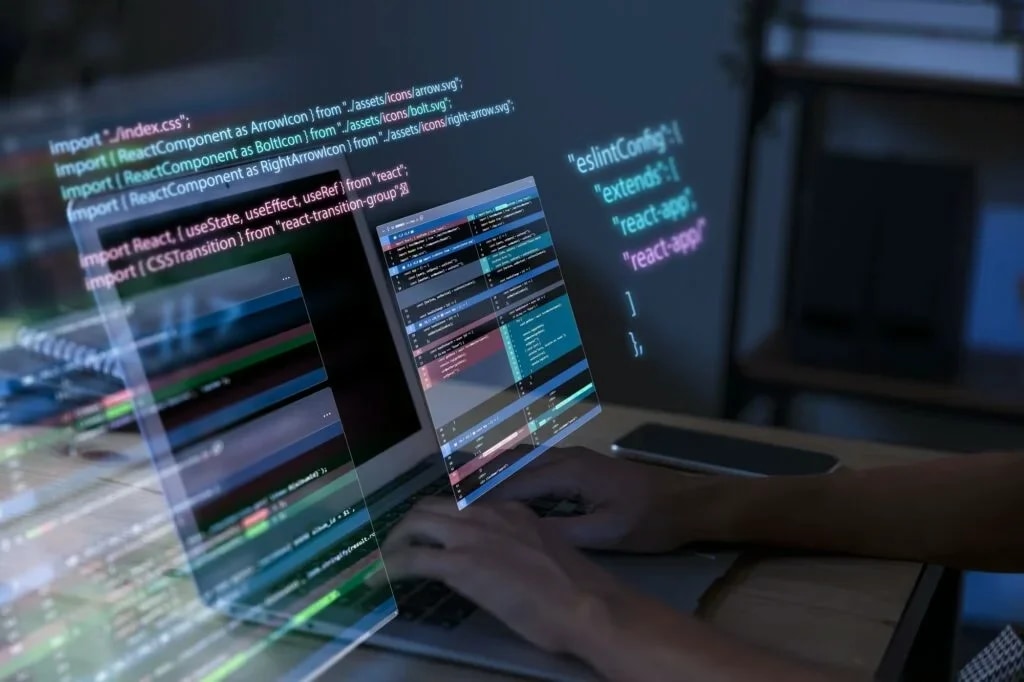
If you work with WordPress every day, you know how repetitive some tasks can be: updating plugins, creating users, importing posts... Fortunately, there is a command-line tool that makes these tasks lightning fast and scriptable: WP-CLI.
In this article you will read what WP-CLI is and how to get started with it, and you will get practical tips written specifically for developers.
What is WP-CLI?
WP-CLI stands for WordPress Command Line Interface. It is a tool that lets you manage WordPress websites directly from the terminal. With WP-CLI you can, among other things:
-
- Install or update plugins and themes
-
- Import or export content
-
- Create users
-
- Run search-and-replace operations in the database
-
- Create database dumps
-
- And much more...
Installing WP-CLI
Installing WP-CLI is straightforward. Run the following commands in your terminal:
curl -O https://raw.githubusercontent.com/wp-cli/builds/gh-pages/phar/wp-cli.phar
php wp-cli.phar --info
chmod +x wp-cli.phar
sudo mv wp-cli.phar /usr/local/bin/wp
After that you can use the wp command as long as you are in the root of a WordPress installation.
Commonly used WP-CLI commands
Updating plugins
wp plugin update --allCreating a new user
wp user create jan jan@example.com --role=editor --user_pass=geheim123Clearing the cache (when using WP Super Cache, for example)
wp cache flushSearch and replace in the database (during migrations, for example)
wp search-replace 'oudedomein.nl' 'nieuwedomein.nl'Updating WordPress core
wp core updatePro tips for developers
1. Writing your own WP-CLI commands
if (defined('WP_CLI') && WP_CLI) {
    WP_CLI::add_command('hello', function () {
        WP_CLI::success('Hallo developer!');
    });
}
Then type wp hello in the terminal.
2. Automation with scripts
#!/bin/bash
wp core update
wp plugin update --all
wp cache flush
3. Quickly setting up a local environment
wp post generate --count=10
wp user generate --count=5
4. Debugging and inspecting
wp option get siteurl
wp db size
wp cron event list
Safety first
Be careful with database operations such as search-replace. Always use the --dry-run option to run a simulation first:
wp search-replace 'oudedomein.nl' 'nieuwedomein.nl' --dry-runUseful WP-CLI extensions
WP-CLI can be extended with additional commands. A few recommendations:
-
wp-cli/profile-command
-
wp-cli/checksum-command
-
wp-cli/restful
In closing
WP-CLI belongs in the toolkit of every WordPress developer. It is fast, scriptable and ideal for teams working on reliable, repeatable workflows.
Plugin developer, theme designer or administrator of multiple sites: WP-CLI saves you time and frustration.
Where it really pays off
Managing one site works fine through the admin area. The difference appears as soon as you have to do the same thing on ten sites, or the same thing every week. A command you write down is repeatable; a series of clicks is not, and by the third time something goes wrong.
That is also the best moment to start: write the next tedious task down once as a command, rather than learning everything first. The rest follows by itself.
Frequently asked questions
Need it, no; useful, yes. For a single site where you change something now and then, the admin area is fine. As soon as you search and replace in the database, run updates in bulk or copy a site, a command gets it done in seconds.
Only with a backup you can actually restore. Commands do not ask for confirmation and have no undo. Run anything new on a copy first; that takes five minutes and saves an evening of repair work.
Not everywhere. You need access to the server, and with cheap packages you often do not get it. With managed WordPress hosting it is usually available, so ask in advance if you want to work with it seriously.